
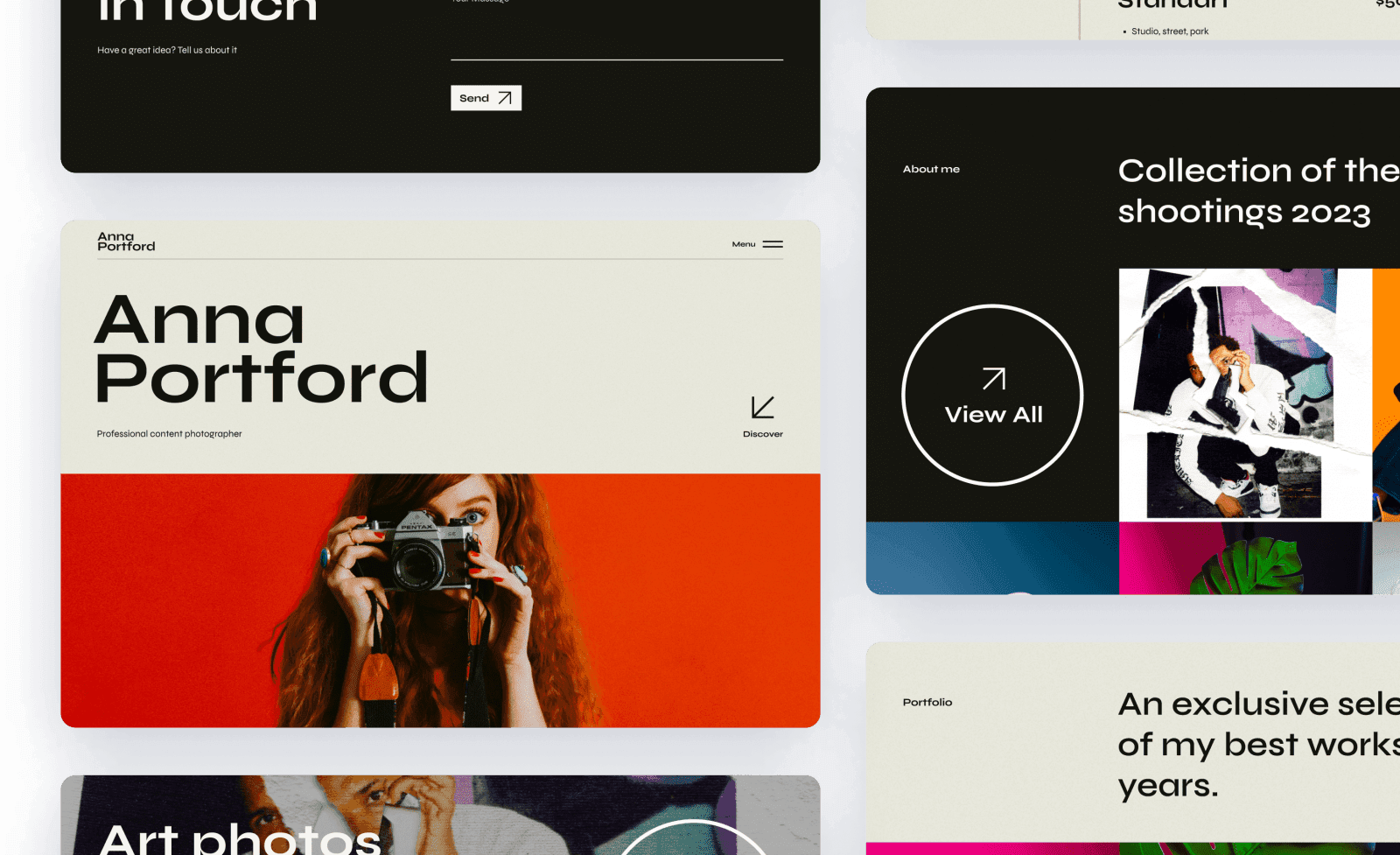
An online gallery is the most professional way to deliver photos to a client - far better than a shared drive link or a zip file over email. A good client gallery is private, on-brand, easy to download from and lets clients pick their favorites. This guide shows you how to create an online gallery for a client from start to finish using Ultra. In Ultra, galleries are called Folders, so whenever you see "Folder" in the dashboard, that is your client gallery.
1. Create a new gallery
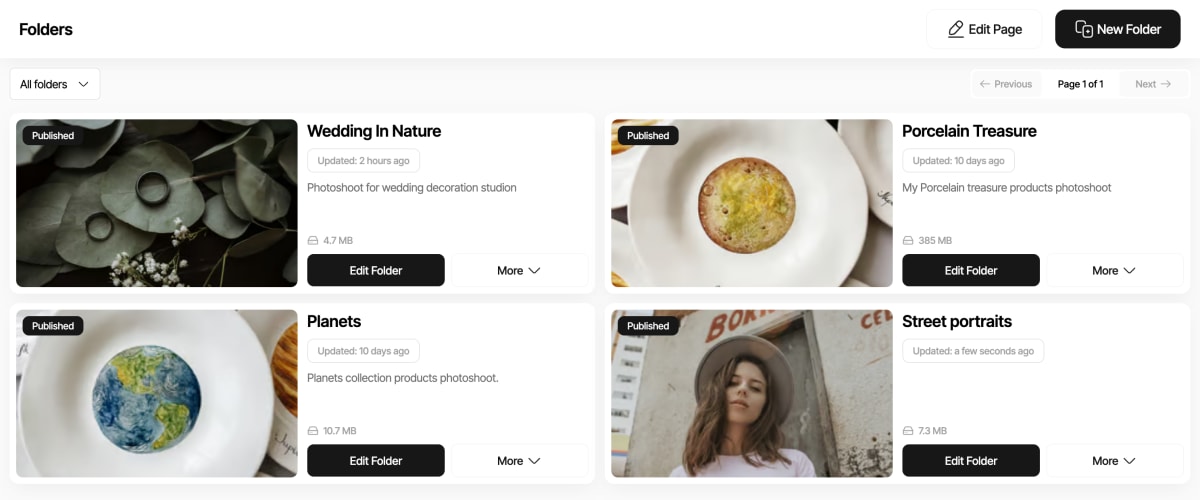
From your Ultra dashboard, open Folders in the sidebar and click New folder. Ultra instantly creates the gallery and opens it, ready for your photos.
2. Add your photos
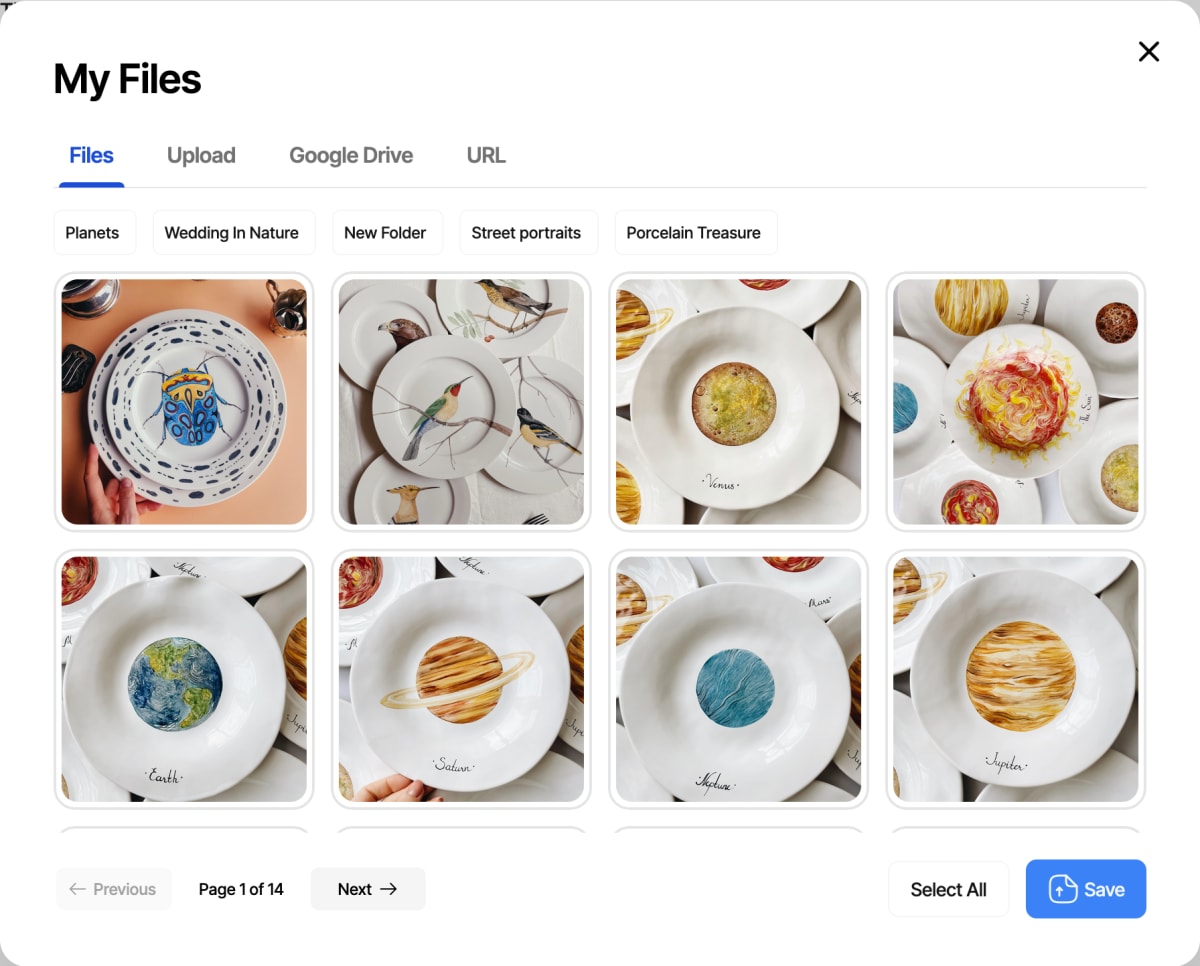
Give the gallery a clear name - usually the client's name or the session, like "Anna & Mark - Wedding". Then add your images: upload straight from your computer, or pull them in from Google Drive or a URL. Large uploads run in the background with a progress bar, so you can keep working while big files transfer.
3. Arrange photos and choose a cover
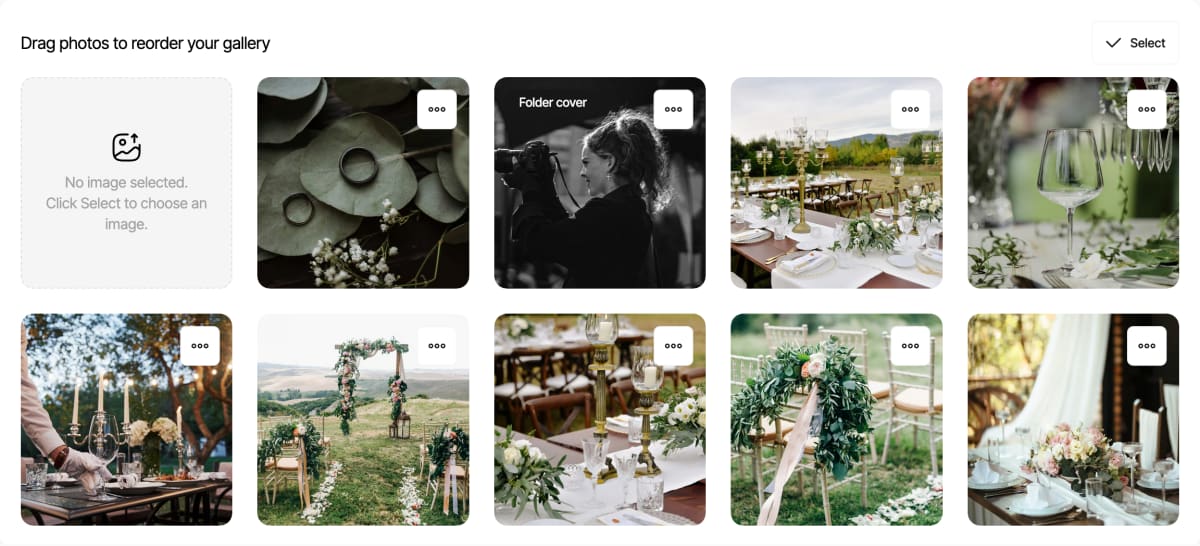
Drag photos into the order that tells the story of the shoot, then set a cover photo - the image clients see first when they open the gallery. Pick one of five designer themes so the gallery looks like an extension of your brand, not a generic file share.
4. Share it privately with your client
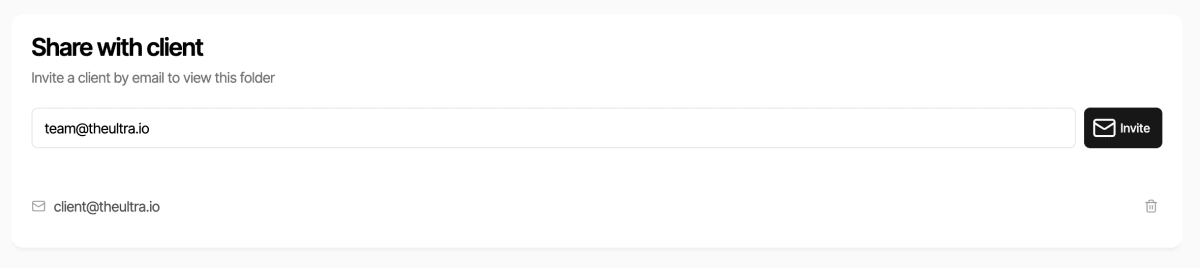
Keep the gallery private and hand it to the right person. Invite your client by email so only they can open it, or set a password and share the link yourself. Publish when you are ready and the gallery is live - no account or app required for your client.
5. Let clients favorite, comment and download
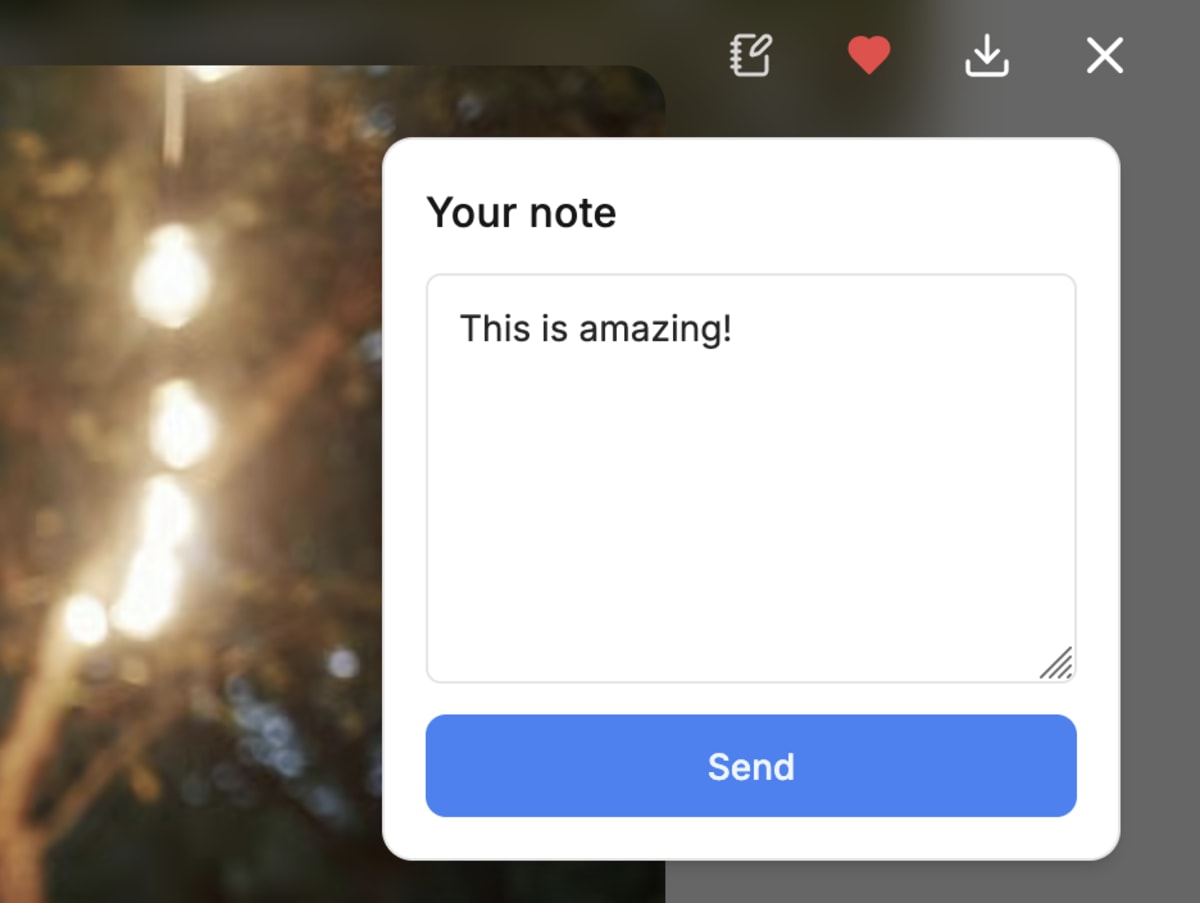
Once your client opens the gallery, delivery becomes collaborative. They mark their favorites, leave notes on individual photos so you know exactly what to print or retouch, and download a single image or the entire gallery as a zip in full resolution.
That is all it takes to create an online gallery for a client. A clean, password-protected, on-brand gallery makes your delivery feel premium and saves you hours of back-and-forth.
Want to make it feel even more personal? Read why delivering photos in a personalized gallery wins more work, or see everything you can do with client galleries in Ultra.